

Account Activation for Students
To fully activate your MyVCCCD account and access the student portal and online college resources, complete these three steps:
- Find the “MyVCCCD Login Link” email and click “Proceed to Account Activation.”
- On the activation page, click “Activate Account.”
- Create your password and set up 2-factor authentication to secure your account.
Once finished, you’ll be able to log in and access your student portal, email, and other college tools.
Detailed Instructions
When your CCCApply Admissions Application has been processed, you will receive an email message with the subject line "MyVCCCD Logon Link":
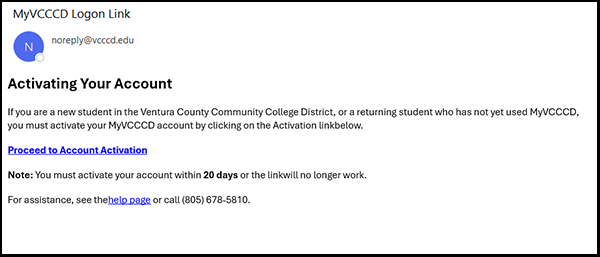
Click the "Proceed to Account Activation" link. This will open a new webpage for step #2.
The MyVCCCD Account Activation webpage will display your:
- Student ID (aka, 900#)
- Username
- Email Address
NOTE: Make sure to save the above information for future reference.
- Password (click the "Show" button to display the password). This is temporary password to get you logged in to MyVCCCD the first time and then you will be prompted to create a new password for your account.
Simply click the "Activate Account" button to continue:
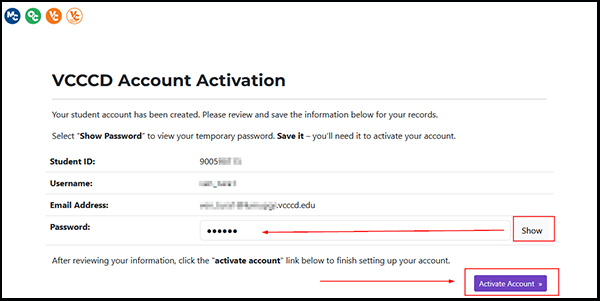
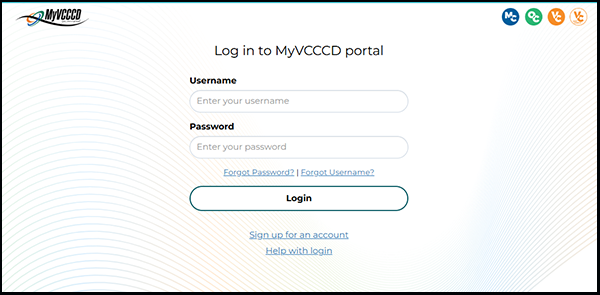
This will take you to the MyVCCCD login page for step #3.
On this screen, your username will be pre-populated. Simply enter the temporary password from the screen in Step #2 and then click the "Login" button:
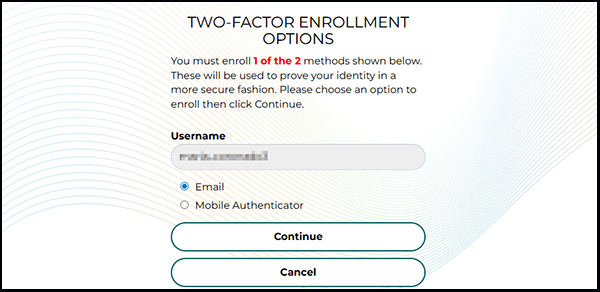
To keep your account secure, you will be asked to set up Two-Factor Authentication. Select Email (your personal email) or Mobile Authenticator, then follow the prompts.
Once you complete Two-Factor Authentication, you will be asked to create a new password for your account:
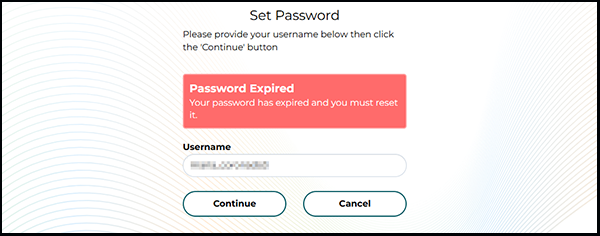
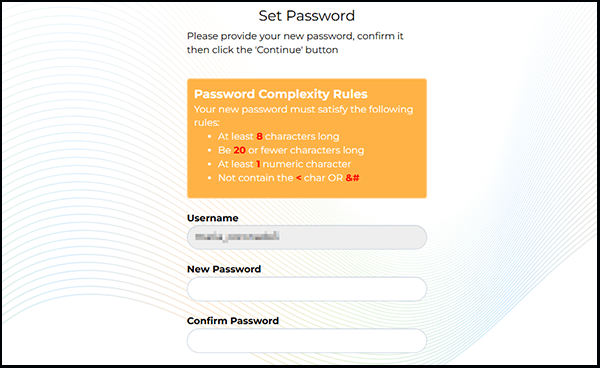
After setting your new password, simply click on the "continue logging in" link:

After logging in with your new password, you will be taken to your student portal. It should look similar to the example below:
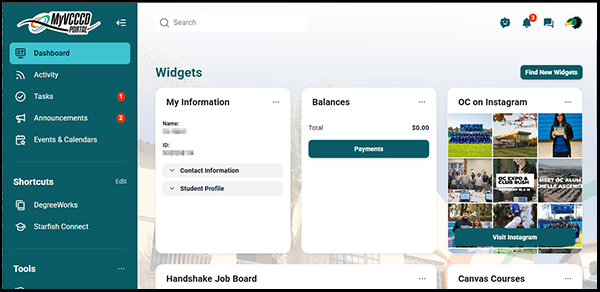
That's it. You are all done!
If you encounter any problems during account activation, please contact the Welcome Center at your campus: